6 | 7 EN
Turn off
You can turn off your ZEISS Victory RF menu by pressing the range finding button in
menu 7 (press SET button for 2 seconds + press the SET button six times).
There are two other ways to shut down your ZEISS Victory RF. Either hold the SET
button down for 2 seconds or don‘t press either of the buttons for around 10
seconds.
Adjustment with the ZEISS Hunting APP
With the ZEISS Hunting App, you have the option of carrying out all the adjustments
mentioned above with your smartphone, in a simple and user-friendly way.
You also have the option of making two further, personalised adjustments. Firstly,
you can enter your own ballistics profile, created in the ZEISS Hunting App, and you
can also set up to three different displays in the display settings.
ESTABLISHING A CONNECTION BETWEEN
THE ZEISS HUNTING APP AND ZEISS VICTORY RF
Initial Connection
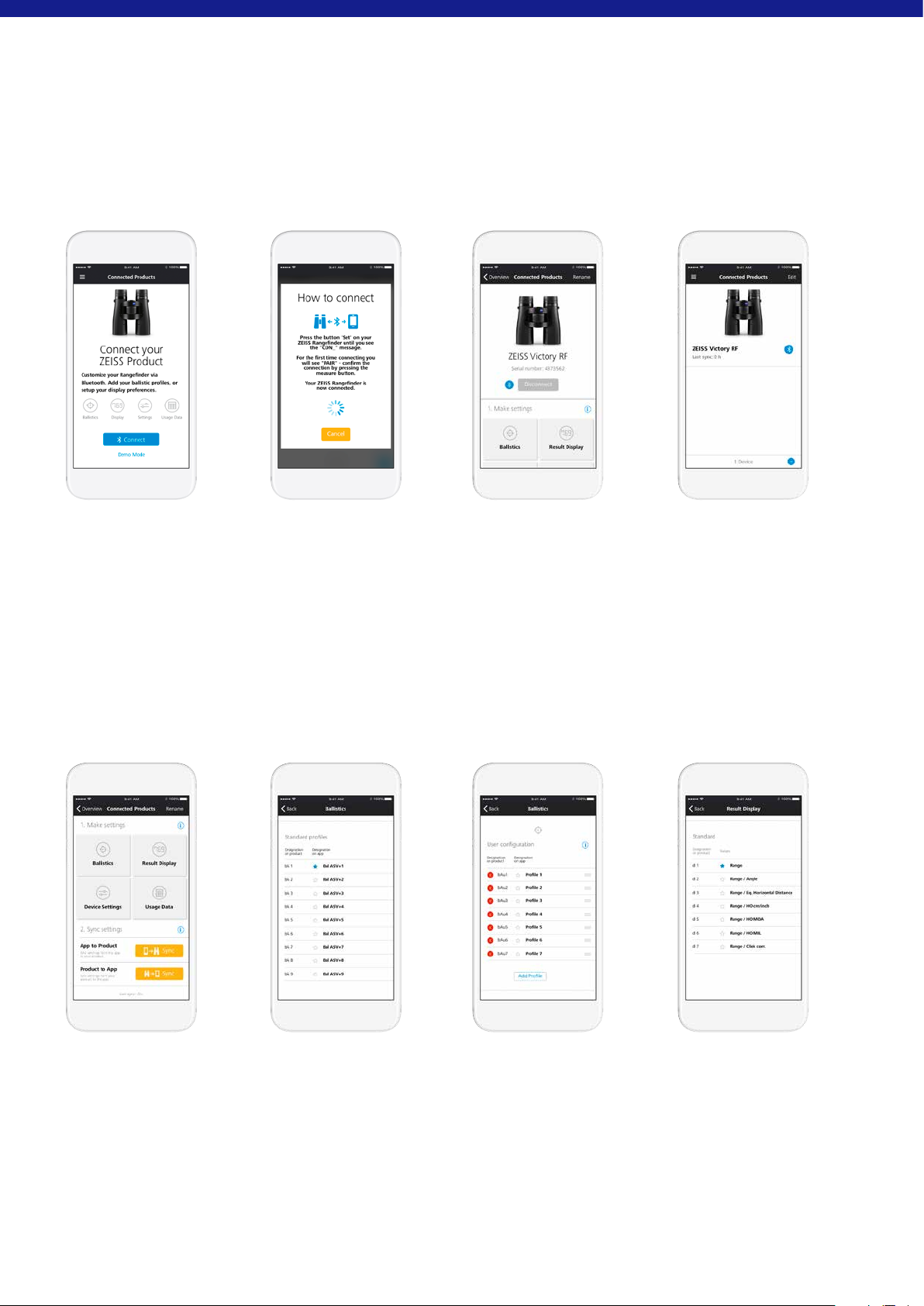
When you first want to connect your ZEISS Victory RF, „Connect Your ZEISS Product“
will appear on the screen in the Connected Products section (Fig. 10). By clicking
the Connect Button once, your ZEISS Hunting App begins connection set-up.
As described in Fig. 11, you must then hold the SET button down for only
10seconds.
Then, the word „CON_“ appears on your ZEISS Victory RF. After you release the SET
button, the word „PAIr“ appears on the display and you confirm this by pressing the
measuring button once.
Now your ZEISS Victory RF is connected with your ZEISS Hunting App as shown in
Fig. 12. You only need to confirm the „PAIr“ for your first connection.
Repeated Connection
After you have initially connected your ZEISS Victory RF with your ZEISS Hunting
App, the Start screen changes the Connected Product Section, as shown in Fig. 13.
Above the (+) button on the bottom right, you can connect ZEISS Victory RF with
your ZEISS Hunting App again. Furthermore, by simply clicking on the stored ZEISS
Victory RF you can make adjustments on your device (Fig. 14) and then sync these.
MAKING ADJUSTMENTS
Ballistics Settings
In the ballistics settings (Fig. 15) in your ZEISS Hunting App, as well as selecting
the nine standard profiles, you also have the option of adding up to nine more
personalised profiles and subsequently syncing with your ZEISS Victory RF. To add
a personalised profile, click on the button „Add Profile“ in the ballistics menu. Then
you can select all previously created ballistics profiles (you can create these in the
„Ballistics“ section of the Toolbox) (Fig. 16).
You also have the option of setting one of your profiles as a „favourite“. The
favourite is the setting that is active on your ZEISS Victory RF and is indicated by a
blue star.
In the ZEISS Hunting App display settings (Fig. 17), as well as the choice of the seven
standard profiles, you have the option of adding up to three more personal profiles
and subsequently syncing them with your ZEISS Victory RF. To add a personal profile,
click on the button „Add Configuration“ in the ballistics menu. Unlike the standard
profiles (Fig.18), you can combine up to three display modes in your personal
profiles. Here, the distance is always set as the first display mode.
You also have the option to save one of your configurations as a „favourite“. The
favourite is the setting that is active on your ZEISS Victory RF and is indicated with a
blue star.
Fig. 10
Fig. 14
Fig. 11
Fig. 15
Fig. 12
Fig. 16
Fig. 13
Fig. 17



Dołącz do dyskusji na temat tego produktu
Tutaj możesz podzielić się swoją opinią na temat Zeiss Victory RF 8x42 Lornetka. Jeśli masz pytanie, najpierw dokładnie przeczytaj instrukcję. Zapytanie o instrukcję można złożyć za pomocą naszego formularza kontaktowego.